Overview
Complete record of all payment transactions received
What are transactions?
Transactions are the complete record of all payments received on the platform. Every time a customer purchases tickets or makes a payment linked to an event, it is recorded here as a transaction. This module lets you see exactly how much was received, how much was charged in fees, the net amount, and the status of each payment.
Transaction List
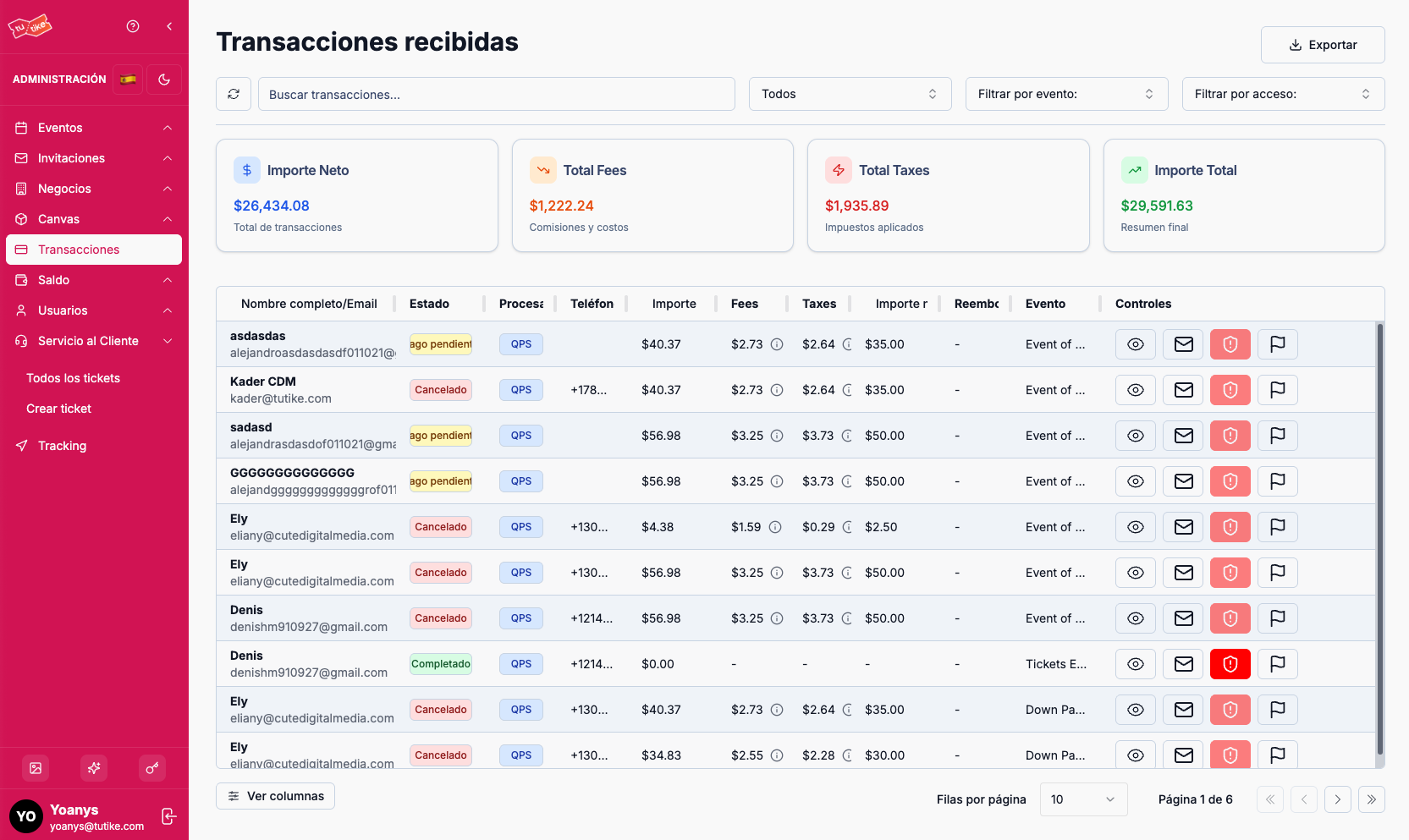
The transactions menu shows a table with a summary of all transactions.
Search Filters
At the top you will find the following filters:
| Filter | Description |
|---|---|
| Search | Find a specific transaction by customer name or email |
| Status | Filter by transaction status (you can select one or multiple statuses) |
| Event | Search all transactions for a specific event |
| Access | Filter by API access (useful if you manage multiple businesses with different booking systems) |
Transaction Statuses
You can filter by the following statuses:
- Canceled
- Processing
- Requires action
- Requires capture
- Requires confirmation
- Requires payment method
- Completed
- Refunded
- Disputed
- Pending payment
Summary Cards
Below the filters you will find four cards that represent totals based on the selected search terms:
| Card | Description |
|---|---|
| Gross amount | Total charged for event transactions from the businesses associated with the client |
| Net amount | Client's net earnings after deducting fees and taxes |
| Total fees | All fees applied to those transactions |
| Total taxes | All taxes applied (TuTike is responsible for collecting and reporting state taxes where applicable) |
By default, with no search terms applied, the cards show the overall total for all transactions received. As you filter and search, the cards reflect the totals for the results you are viewing.
The net amount corresponds to the client's net earnings — the amount after deducting fees and taxes from the total.
Transaction Table
Below the cards you will find the table with a transaction summary based on the applied filters. The table includes:
| Column | Description |
|---|---|
| Name | Customer name |
| Customer email address | |
| Status | Transaction status |
| Processor | Payment processor used |
| Phone | Phone number of the user who made the transaction |
| Amount | Transaction amount |
| Fees | Applied fees |
| Taxes | Applied taxes |
| Net amount | Client's net earnings after deducting fees and taxes |
| Refund | Whether the transaction was refunded and how much was refunded |
| Event | Event associated with the transaction |
| Controls | Options to view details, send email, etc. |
Transaction Detail
Clicking "View details" on a transaction opens the detail screen with all the information broken down:
- When the transaction took place
- Direct link to the booking
- Transaction status
- Tab with the payment processor including a detailed payment audit report:
- User IP address
- Headers
- Card data (last four digits)
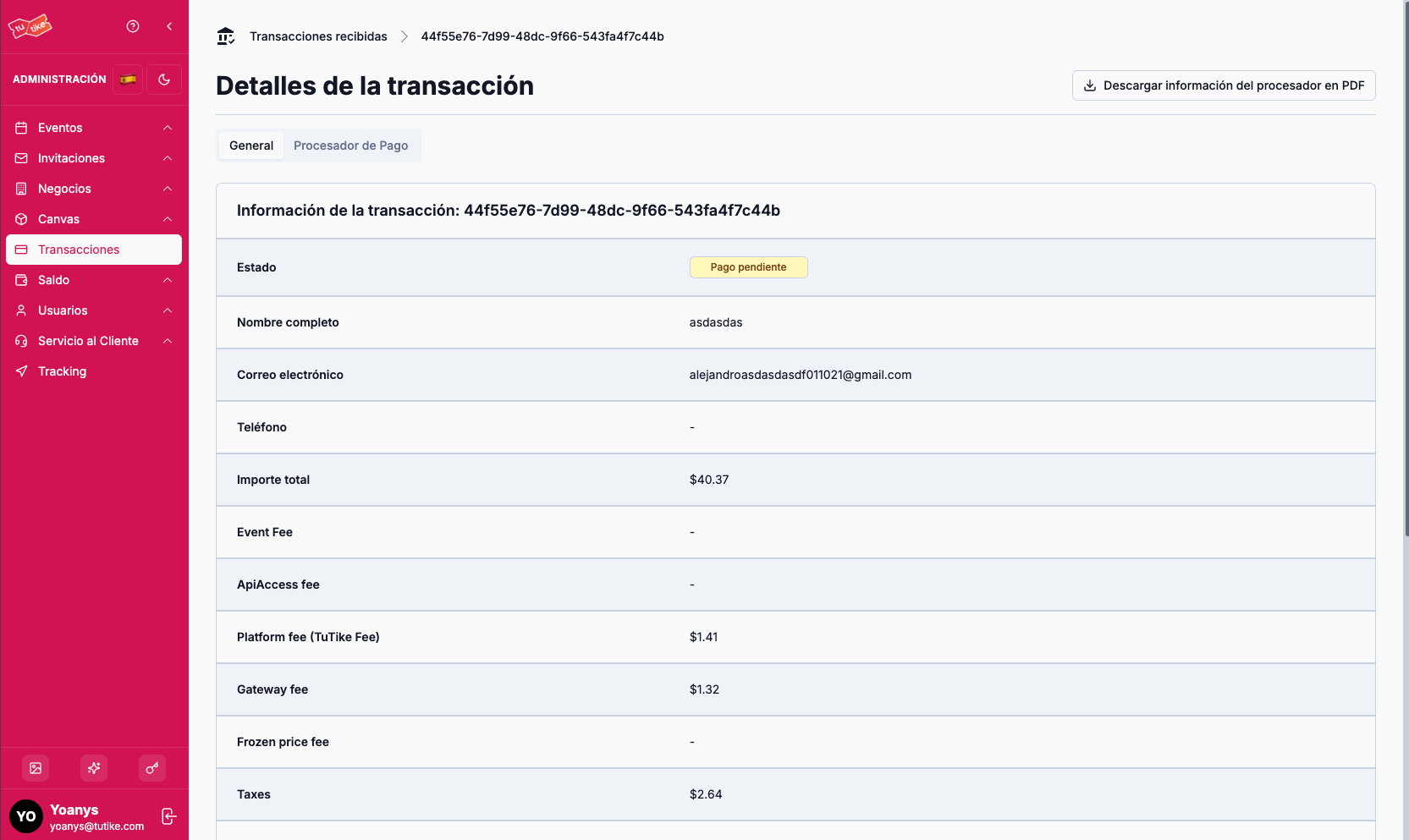
This certified audit report can be used to respond directly to disputes, as it contains all transaction data including the user's identifying information, transfer data, IP address, and other relevant information.
Additionally, it includes information about emails sent to the user with email signatures.
Fee Breakdown
Here is how each customer payment is distributed:
Available Actions
On the transaction detail screen you can perform the following actions:
| Action | Description |
|---|---|
| Send support ticket | Sends an email directly to the transaction user to communicate with them |
| Dispute a charge | Records a dispute in case a charge was disputed through a payment processor |
| Add to fraud signal | Adds the payment and all its data to a fraud detection signal to prevent the same user from paying in the system again |
TuTike has an intelligent fraud detection system that uses these signals to prevent fraudulent transactions.
Send email to customer
Directly from the list, on each row, you can send an email to the customer:
- The customer's email is pre-loaded automatically
- You can customize the subject and message
- Useful for notifications, follow-ups, or issue resolution without leaving the module
Export to Excel
The entire list (with active filters) can be exported to Excel with the following columns:
Status, Email, Name, Phone, Amount, Net Amount, Taxes, Event Fee, API Access Fee, Gateway Fee, Frozen Price Fee, Platform Fee, Total Fees, Refunded, Event, Date, Payment Method, Transaction ID.
Dispute (Chargeback) Flow
If a customer files a chargeback with their bank:
Use the "Dispute transaction" action when you identify an incorrect or fraudulent charge. Act quickly: processors have defined deadlines for submitting evidence in disputes.
What is it for?
- Full money visibility — every cent collected is here, with its origin and destination
- Payment quality control — identify failed transactions, disputes, or pending refunds
- Financial traceability — know exactly how each payment was distributed between the platform, organizer, and processor
- Direct communication — send emails to the customer without leaving the transaction context
- Audit — the event history for each transaction lets you know exactly what happened and when
- Issue analysis — charts help identify patterns in failed payments
- Accounting export — facilitates reconciliation and external reports in Excel