Promoters
Management of external promoters who sell and promote your events in exchange for commissions
What is it?
The Promoters section is where you can create, manage, and view statistics for your external promoters. Promoters are people who promote your events through personalized referral links and earn commissions for each sale they generate.
This screen lets you assign promoters to your events, define the commissions they will receive, create personalized referral links for each promoter, and monitor their sales performance.
How does it work?
The promoter system lets you extend your sales reach at no fixed cost. You only pay commissions on real sales your promoters generate. The flow is as follows:
- Create the promoter profile: Register the promoter on the platform with their access credentials
- Define commissions per event: Set how much the promoter will earn per sale (percentage or fixed amount)
- Generate referral links: The system creates personalized links for the promoter to promote your events
- The promoter shares the links: The promoter distributes their links through their channels (social media, email, etc.)
- Customers book from the links: When a customer books using the referral link, the sale is automatically attributed to the promoter
- Commission is calculated: The system automatically calculates the commission based on the configuration you defined
- Record and pay: The commission is recorded in the promoter's history and you make the payment manually
Promoters Landing Page
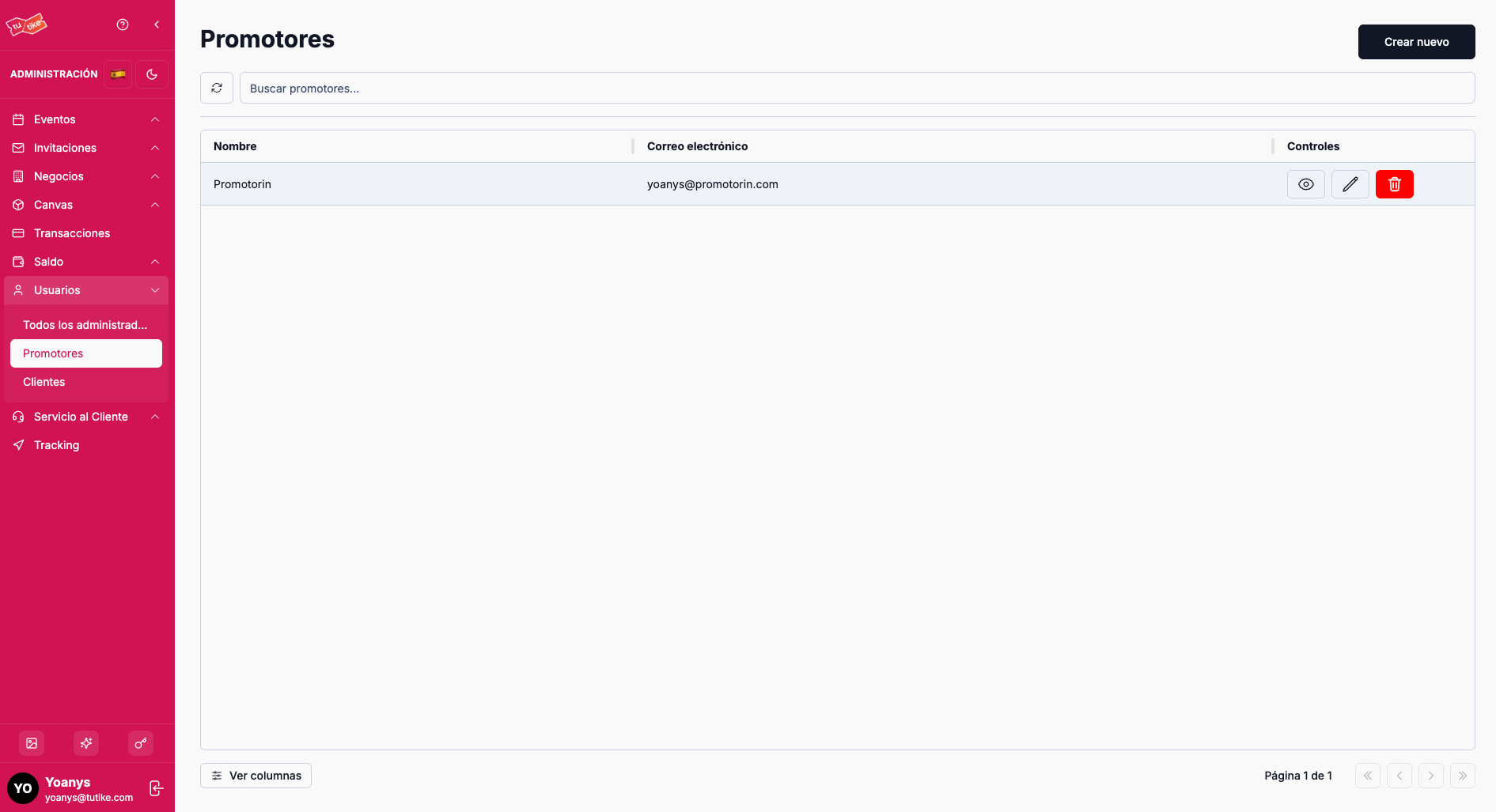
The promoters landing page shows an exclusive list of your external promoters. On this screen you will find:
- Search bar: Search for a specific promoter by name
- Promoters table: List with all your active promoters
Promoters Table
The table shows the following information:
| Column | Description |
|---|---|
| Name | Full name of the promoter |
| Promoter's email address | |
| Controls | Available options to manage the promoter |
Available Controls
In the controls column you will find the following options:
| Action | Description |
|---|---|
| View details | Access the promoter's details page with their commissions, referral links, and information |
| Edit | Modify the promoter's data (name, email, password) |
| Deactivate | Restricts the promoter's access to the platform. The promoter is not deleted, only deactivated and will no longer be able to access |
When you deactivate a promoter, they will temporarily lose access to the platform. The promoter remains in the system and can be reactivated in the future if needed. This action is reversible.
Create New Promoter Button
At the top right you will find the "Create new promoter" button. Clicking it will take you to a page similar to the user creation page, but specifically for creating a user with the promoter role.
Promoter Creation Fields
On the promoter creation page you must complete:
| Field | Description |
|---|---|
| Name | Full name of the promoter |
| Email address they will use to access the platform | |
| Role | Automatically selected as "Promoter" |
| Password | Platform access password |
| API Access | API Access they will be given access to (optional) |
Promoter Detail View
Clicking "View details" on a promoter takes you to their detail page with 3 tabs:
Commissions Tab
Complete history of all commissions earned by the promoter. This section shows a table with:
- Event the commission belongs to
- Amount of each commission earned
- Commission date
- Total accumulated earned by the promoter for that event
Referral Links Tab
List of all personalized links assigned to the promoter. Each link has its own sales tracking and statistics. From here you can:
- View all the promoter's referral links
- Monitor how many sales each link has generated
- Create new links for specific events
Create Referral Links Button
On this tab you will find the "Create referral link" button. Clicking it will open a modal where you can configure a new referral link for the promoter.
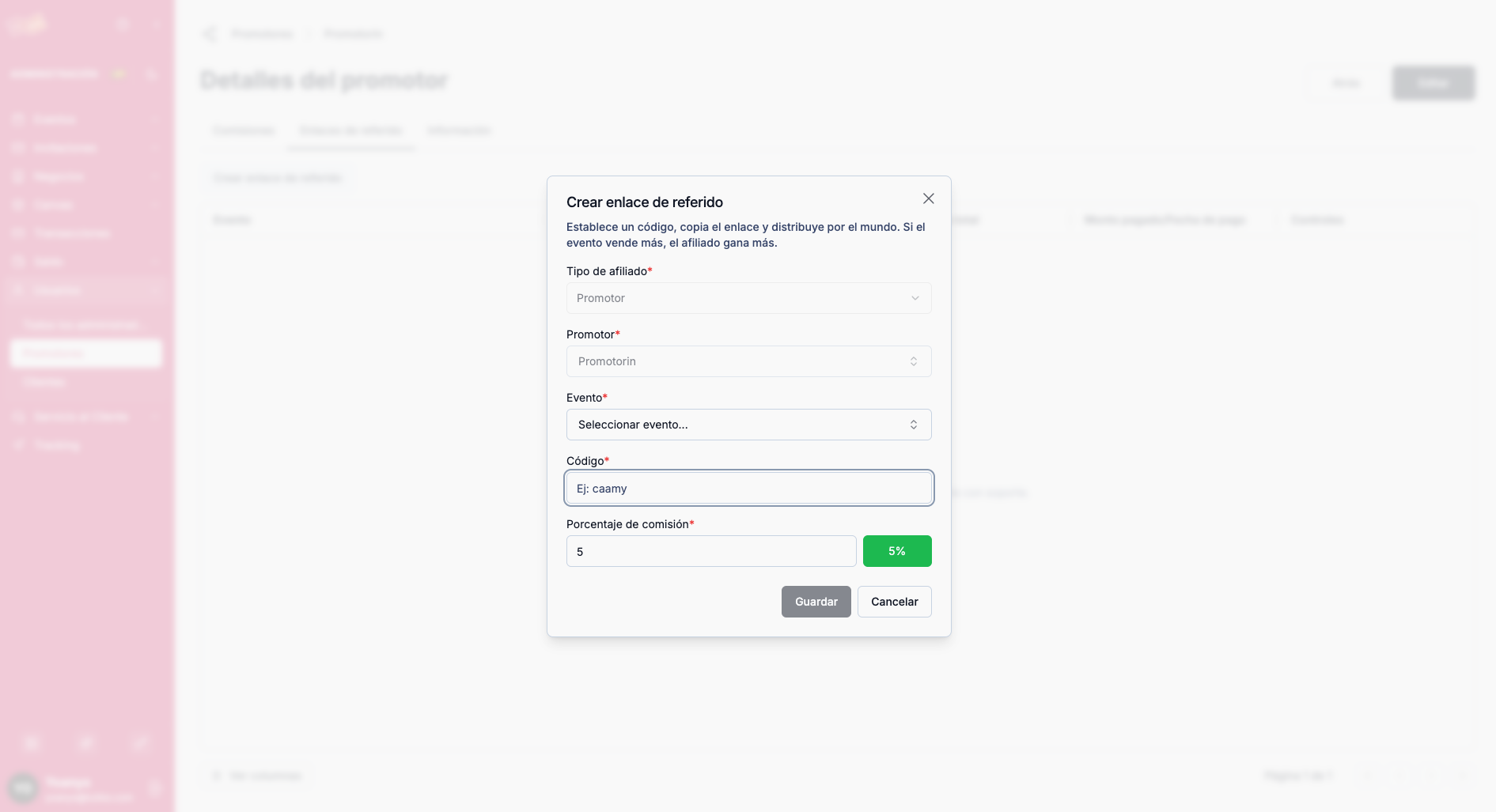
Link Creation Modal Fields
| Field | Description |
|---|---|
| Affiliate type | Affiliate type (selected by default) |
| Promoter | Promoter the link will be assigned to (selected by default) |
| Event | Event for which this referral link will be created |
| Link code | Custom link code that you can define when creating it |
| Commission percentage | Percentage the promoter will earn for each completed purchase made through users who click their link |
Once the link is created, the promoter can share it through their social media or any other channel. Users who enter the event through this link and complete the purchase will generate the corresponding commission based on the defined percentage.
Information Tab
General promoter data:
- Name and email address
- Profile creation date
- Last update date
- Current status of the promoter (active/inactive)
What is it for?
The Promoters section lets you:
- Extend your sales reach: Increase your sales at no fixed cost, paying only for results
- Manage your promoter network: Create and manage external promoter profiles
- Define custom commissions: Set how much each promoter earns per link and event
- Track performance: View sales statistics for each promoter and referral link
- Control payments: Monitor earned commissions and record when you pay them
- Measure ROI: Identify which promoters and channels generate the most revenue for your business
Promoters extend your sales reach at no fixed cost: you only pay commission on completed purchases. Referral links let you measure exactly which channel generates the most revenue and optimize your marketing strategy.