Reservation Map
Interactive view of the business floor plan to create and manage reservations visually
What is the reservation map?
The reservation map is an interactive view of the business's physical floor plan that allows creating and managing reservations directly from the canvas. If the business has the reservation map enabled and availability created from it, the manager, lobby staff, or receptionist can manage reservations visually.
This functionality enables a more visual and intuitive management of reservations, especially useful for restaurants that have a table map configured.
How to access
From the business detail view, select the "Reservation Map" tab.
Display Filters
Before viewing the map, adjust the following parameters in the top card:
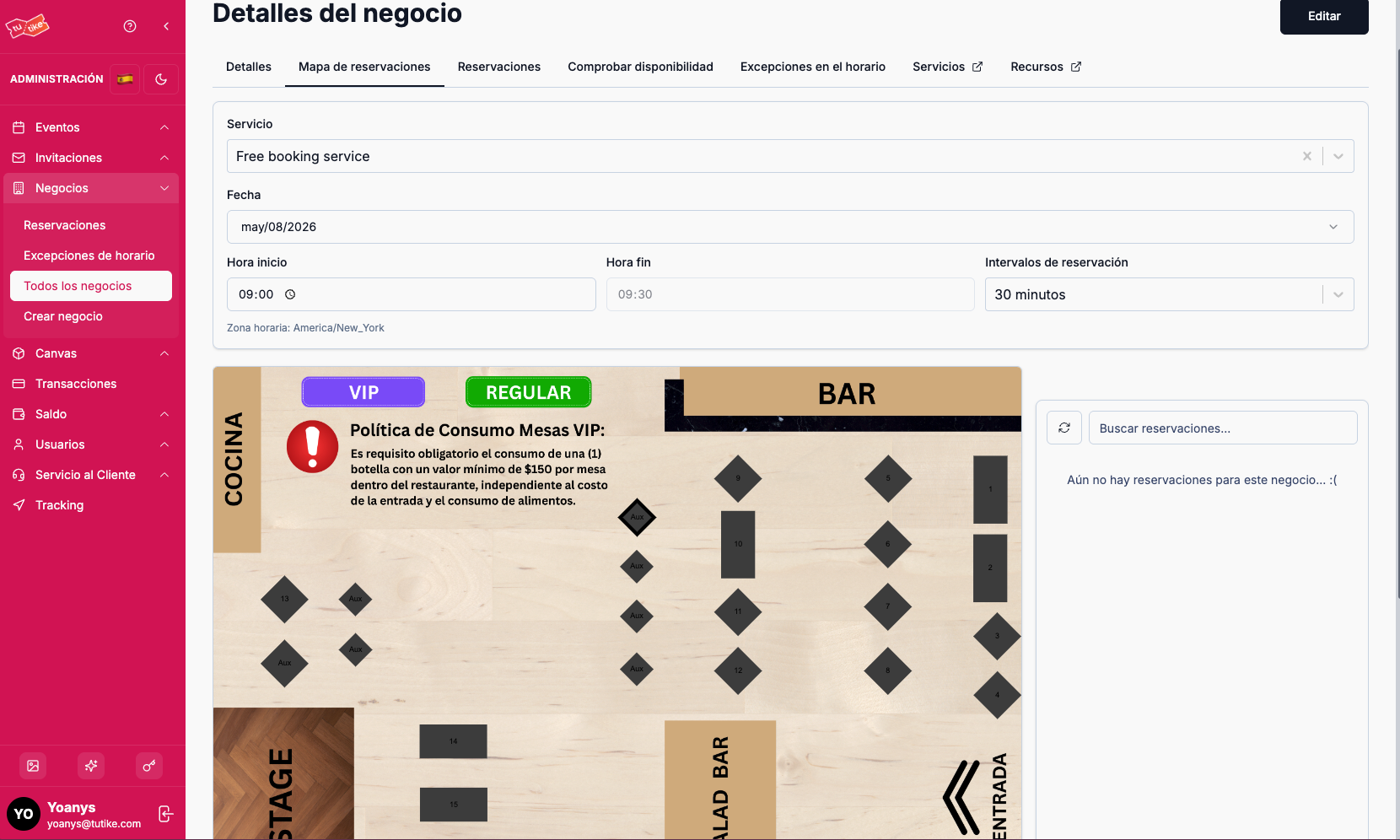
| Field | Description |
|---|---|
| Service | Select the service you want to manage. By default, the system pre-selects the configured service |
| Date | Date for which you want to view reservations |
| Start time | Time from which you want to view reservations |
| End time | Time until which you want to view reservations. Automatically configured based on the business's booking interval |
If the booking interval configured in the business is 30 minutes, when you select the start time, the system automatically sets the end time to that interval to display reservations in that period.
Creating a Booking from the Map
To create a booking directly at a specific table:
- Click the desired table on the map
- A modal will open with the booking form
- Complete the required fields:
- Customer name
- Phone
- Group size (number of people)
- Notes (optional, for additional information like allergies)
- Click "Save"
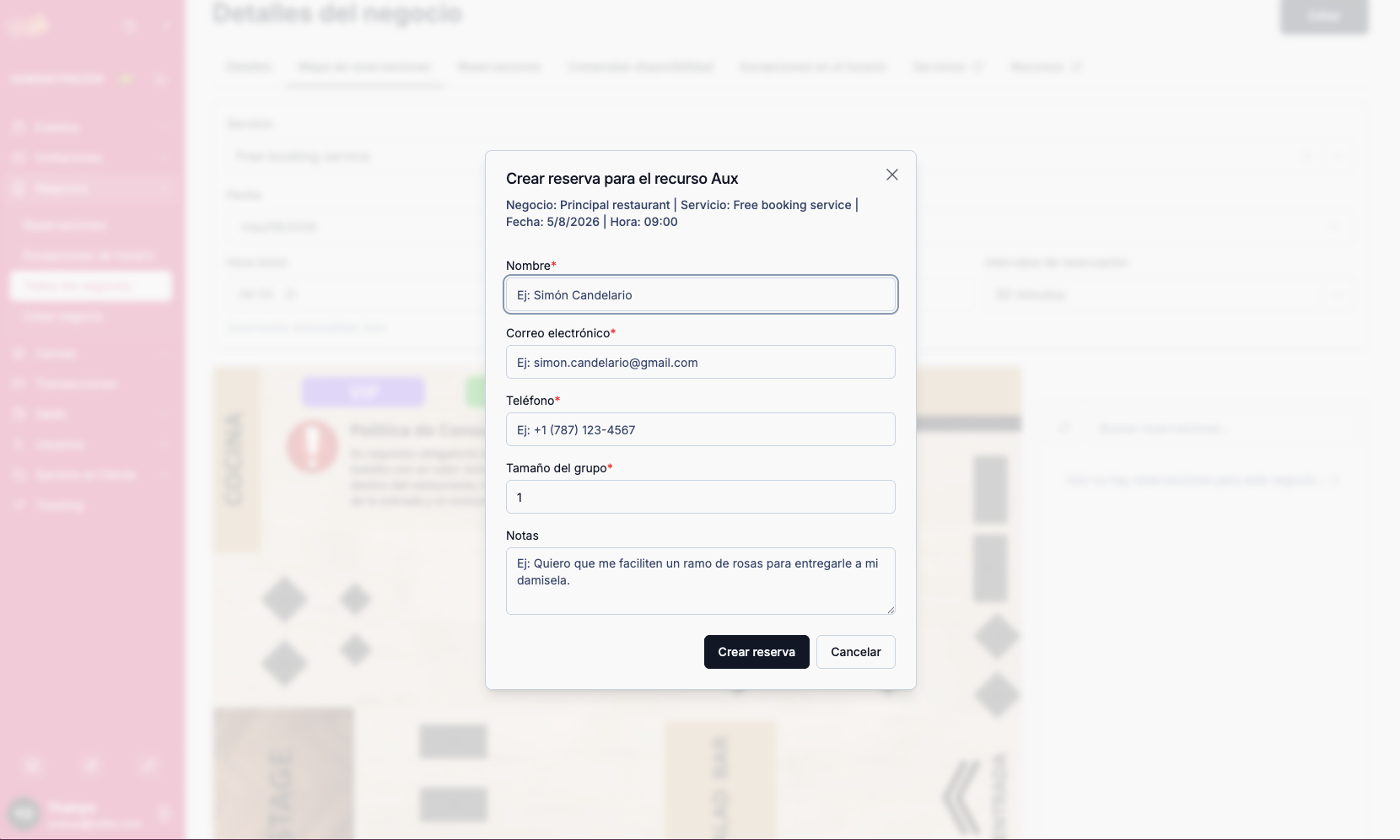
The booking will be created for the selected table and time slot.
Managing Existing Reservations
The map shows the reservations that the system automatically assigns when customers book through Google or the business's website.
Information per Table
Each table with an assigned reservation shows:
- Customer name
- Group size
- Start and end time
- Reservation status
Modifying Reservations
From the map you can:
- Move reservations — Drag and drop a reservation from one table to another to reassign it
- Change schedule — Modify the reservation time visually
- View details — Check the complete reservation information
- Edit — Modify the reservation data
- Change status — Update the status (pending, confirmed, cancelled, etc.)
- Delete — Cancel the reservation
The visual map management lets you quickly see which table was automatically assigned to each reservation based on the customer's group size, and make adjustments intuitively by dragging and dropping.