Reservations
Viewing and managing service bookings at businesses linked to the platform
What are business reservations?
Business reservations are service requests that customers make directly at an establishment linked to the platform. Unlike event tickets, these bookings correspond to scheduled services (tables, appointments, spaces, etc.).
Reservations can originate from multiple sources: your business's website, the TuTike platform, or directly from your establishment's Google profile.
Reservation List

From this section you can see all reservations received at the businesses you manage.
Search Bar and Filters
At the top of the list you will find the following search and filtering tools:
- Free search — Search reservations by customer name, email, or phone number
- Business filter — If you manage multiple establishments in your business chain, you can filter to see reservations for a specific business
- Status filter — Filter by pending, confirmed, cancelled, etc.
- Date filter — Filter reservations within a specific date range
- Export button — Export the reservations visible on the current page to Excel
- Book button — Create a new reservation manually
The Export button downloads only the reservations visible on the screen. If you need to export all reservations for a period, adjust the rows-per-page filter to the maximum available before exporting.
List Columns
| Column | Description |
|---|---|
| Customer name | Name of the person who made the reservation |
| Customer email | |
| Phone number | Customer contact phone |
| Reservation date | Date and time the reservation is scheduled for |
| Status | Current reservation status (interactive badge) |
| Business | Establishment where the reservation was made |
| Controls | Buttons to view detail or edit the reservation |
Reservation Statuses
| Status | Description |
|---|---|
| Pending | Request received, awaiting confirmation |
| Confirmed | Reservation approved and customer notified |
| Contacted | Customer was contacted and reservation verified |
| Occupied | Table is currently in use |
| No-show | Customer did not show up |
| Cancelled | Reservation cancelled by the customer or business |
| Rejected | Reservation rejected by the business |
| Completed | Service was delivered successfully |
Currently, all reservations are confirmed automatically. This is a requirement of the Google integration for businesses that have this functionality enabled.
Changing a Reservation Status
You can change the status of a reservation directly from the list or from the detail view:
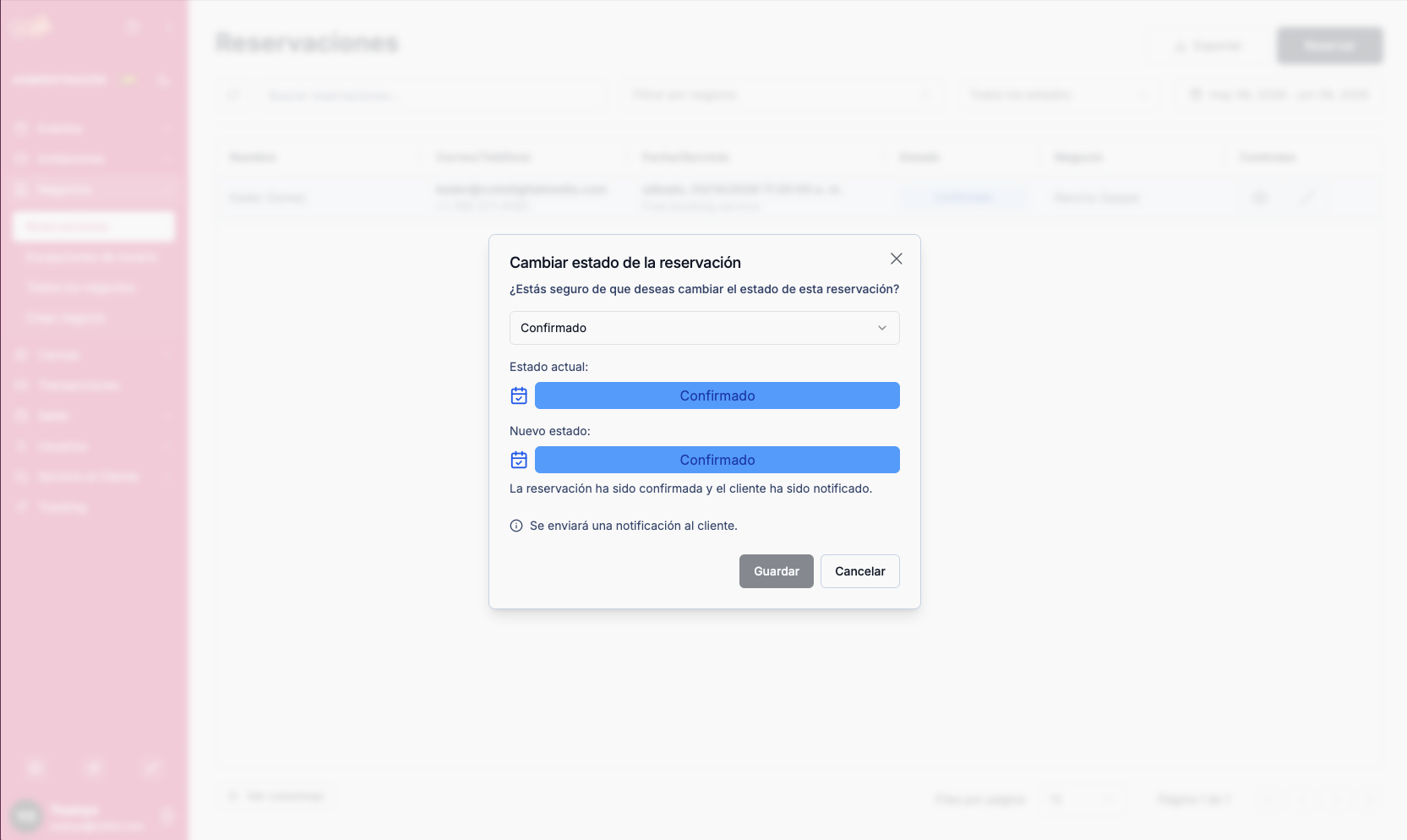
- Click the status badge of the reservation
- A modal will open with the available status options
- Select the new status
- The customer will automatically receive an email notification about the change
When you change a reservation's status, the customer is notified automatically. Make sure the change is correct before confirming.
Automatic Notifications
The system sends email notifications automatically in the following cases:
- New reservation — You receive a notification at the administrative email configured for your business
- Cancellation — Both the customer and you receive cancellation confirmation
- Status change — The customer is notified when you update their reservation status
Viewing Reservation Details
Click the eye icon (👁️) in the controls column to access the complete details for a reservation.
The detail view shows:
| Field | Description |
|---|---|
| Business | Reservation establishment |
| Status | Current status shown as an interactive badge |
| Customer name | Name registered when booking |
| Customer email | |
| Phone | Customer phone |
| Google user? | Indicates if the customer booked from the business's Google profile |
| Start date | Reservation start date and time |
| End date | End date and time |
| Group size | Number of people for the reservation |
| Notes | Customer or team observations |
| Service | Shift or service type associated |
| Resource(s) | Table or resource automatically assigned |
| Created date | When the reservation was created |
| Updated date | Last modification |
Actions from the Detail View
From the detail view you can:
- Change status — Click the status badge to update it
- Edit — Modify the reservation data (available if it has not ended)
Editing a Reservation
From the detail view, click "Edit" to modify the reservation data.
Modifying a reservation may affect the customer. Review the changes carefully before saving.
Editable Fields
| Field | Editable |
|---|---|
| Name | Yes |
| Yes | |
| Phone | Yes |
| Date and time | Yes |
| Group size | Yes |
| Notes | Yes |
| Business | No — fixed from creation |
| Service | No — fixed from creation |