All Businesses
Complete list of all businesses registered on the platform
What is this section?
Shows the complete list of all registered businesses. This section is ideal for business chains managing multiple establishments. For example, a restaurant chain can create its 4 restaurants as individual businesses, or a spa chain can register each of its establishments.
Business List
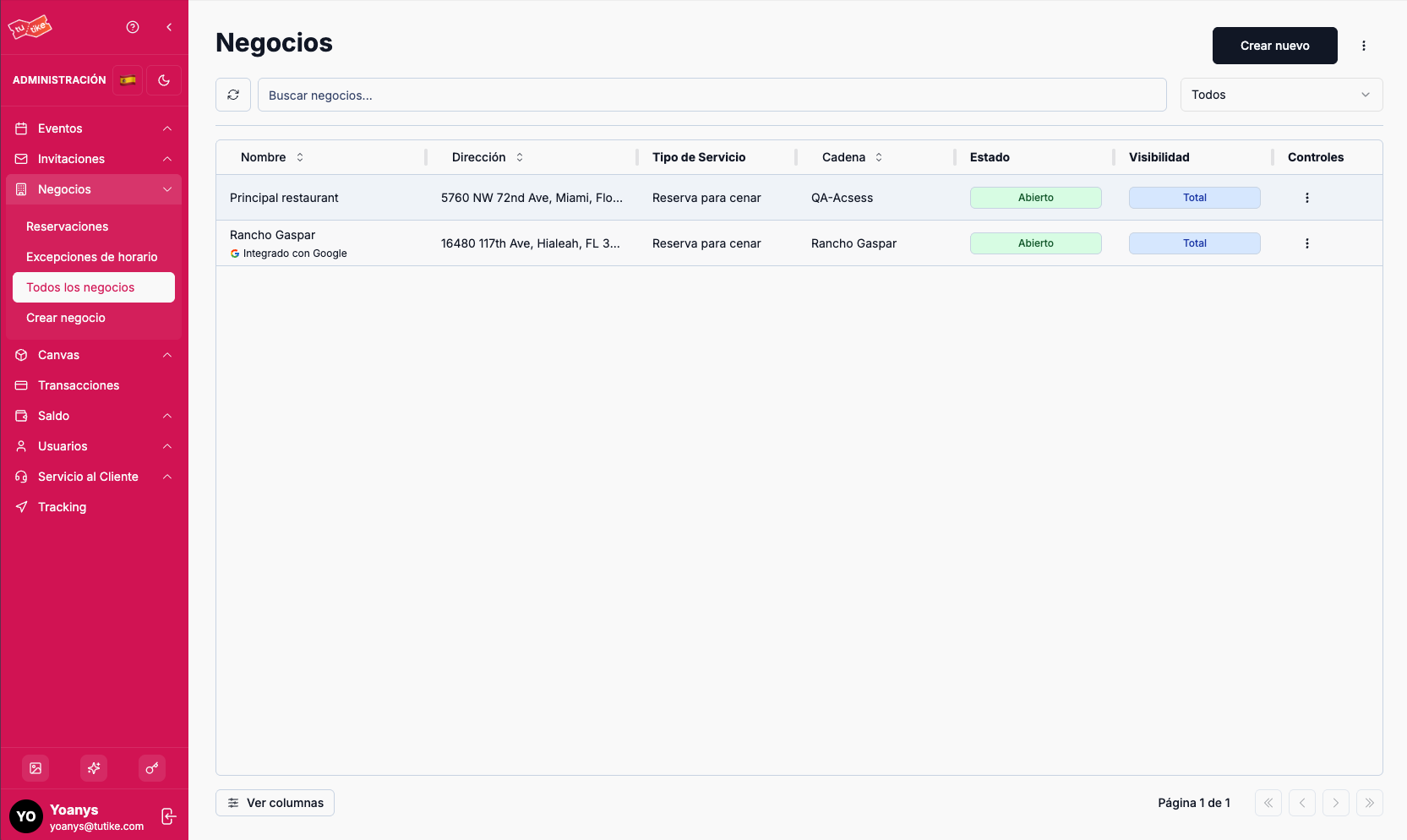
Search Bar and Filters
At the top of the list you will find:
- Search — Search businesses by name
- Status filter — Filter by all businesses or only active ones (those that are open)
Action Buttons
- Create new business — Register a new establishment on the platform
- More options (⋮) — Menu with forced Google sync options:
- Update services — Sends Google the most up-to-date information about your businesses' services
- Update businesses — Sends Google the most up-to-date information about your businesses' data
- Update availability — Sends Google the most up-to-date information about your businesses' availability
Google sync happens automatically every day. Use these buttons when you need to force an urgent update, for example, after scheduling a schedule exception and you want Google to be informed sooner.
List Columns
| Column | Description |
|---|---|
| Name | Name of the establishment |
| Address | Physical location of the business |
| Service type | Type of business (restaurant, barbershop, spa, etc.) |
| Business chain | Chain it belongs to (if applicable) |
| Status | Open or closed |
| Visibility | Full or reduced |
| Controls | Action menu for each business |
Business Visibility
Each business can configure its visibility:
- Full — The business is shown on the TuTike website so people can make reservations
- Reduced — The business does not appear on the TuTike website but remains active for reservations
Controls per Business
Clicking the controls menu for a business, you can:
- View details — Access the complete information for the business
- Edit — Modify the business data
- Enable Google sync — Activate or deactivate Google integration
- Close — Close the business
Business Details View
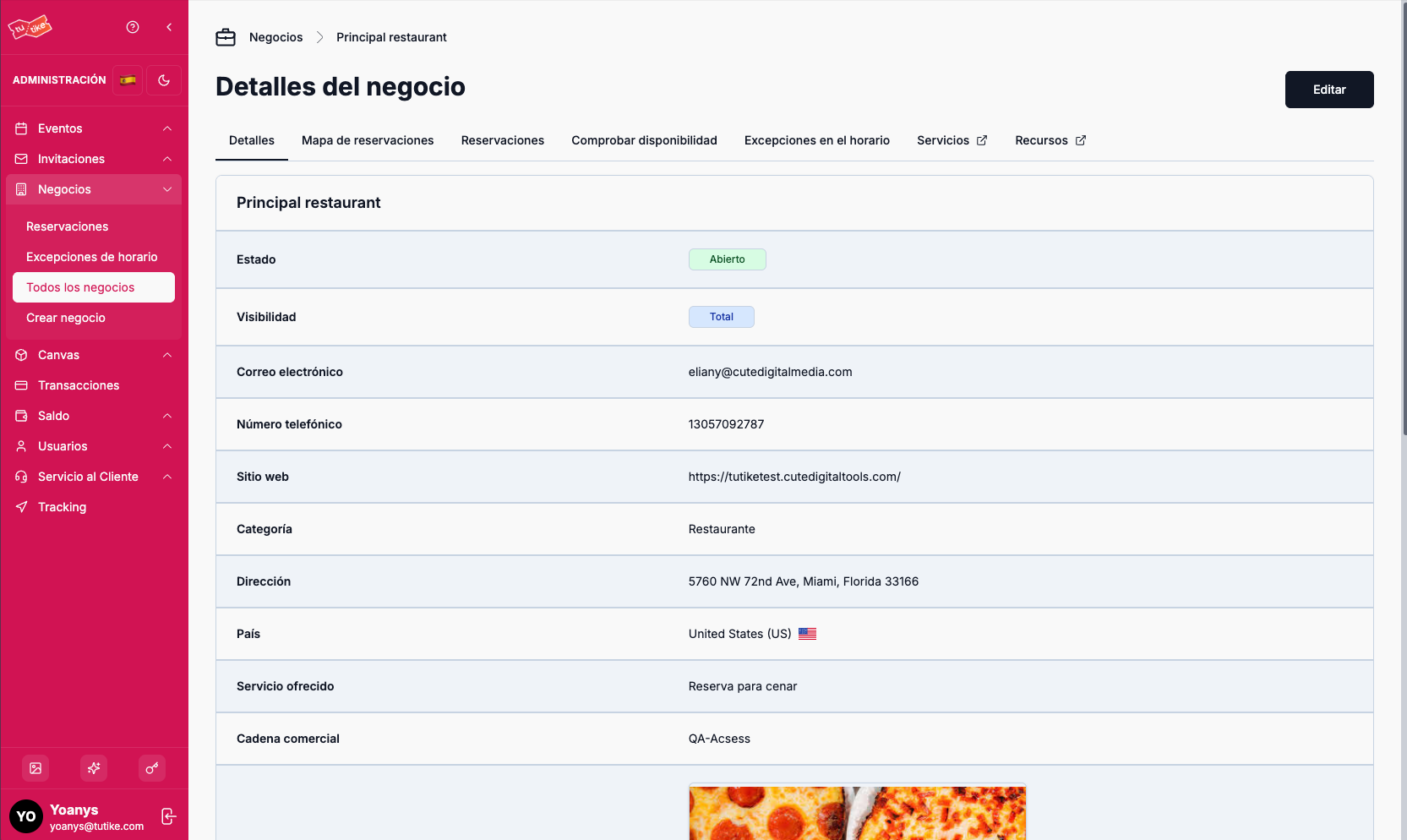
Click "View details" to access the complete information for a business. The details view includes the following sections:
Business Information
Table with all the business details: name, address, service type, business chain, status, visibility, and additional configurations.
Reservation Map
View the business's reservations on the canvas (restaurant floor plan). The system automatically assigns a table to each reservation.
The reservation map allows for visual availability management. This functionality is explained in detail in the specific reservation map section.
Reservations
Reservation table for the business (similar to the general list, but filtered for this establishment only).
Availability Checker
Verifies the business's availability on Google.
Schedule Exceptions
List of schedule exceptions scheduled specifically for this business.
Services
List of services configured for the business.
Resources
List of resources (tables, spaces) configured for the business.
The detailed configuration of services and resources is explained in the business creation and editing sections.
Edit Button
From the details view, you can click "Edit" to go directly to the business editing mode.
Google Sync
Google integration allows restaurants to appear on their Google profile with a booking button, enabling customers to book directly from Google.
Requirements to Enable Sync
For a business to be able to sync with Google, it must meet the following requirements:
Business Information
- Name of the establishment
- Email contact
- Category — Must be "Restaurant"
- Business chain it belongs to
- Service type — Must be "Dinner reservation"
- Visibility — Can be full or reduced
- Full address of the business
- Coordinates — Latitude and longitude (you can get them from Google Maps: right-click on the business map and copy the coordinates)
Operating Schedule
- Days of the week the business is open
- Opening and closing hours for each day
Business Configuration
- Booking interval — Bookable periods (15 minutes, 30 minutes, 1 hour, etc.). Defines whether customers can book from 6 to 7 or 6 to 7:30, for example
- Minimum booking lead time — In minutes. For example, 60 minutes means the customer must book at least 1 hour in advance
- Maximum booking lead time — In minutes. Important: Google requires at least a 31-day window to be enabled for booking. You must configure at least 32 days (or its equivalent in minutes)
- Maximum bookings per day — Optional. Limits the number of reservations that can be accepted per day
- Minimum cancellation time — In minutes
Optional Settings
- Allow cancellations
- Allow online reservations
- Allow last-minute reservations
Services and Resources
- Service — Must have created at least one service. When creating the business, the system automatically creates the "Free Booking Service"
- Resources — Must have created at least one resource. For restaurants, resources are tables. You must define how many tables seat 4 people, 2 people, 1 person, etc.
The detailed creation of services and resources is explained in the business creation section.
Google takes time to propagate changes. If you enable sync or make significant changes, wait at least 24 hours for Google to fully update its systems.