Confirm entries
Access control and QR scanning
What is confirming entries?
The attendance confirmation process validates entries at the event door by scanning QR codes. Both in the full entries listing and on an individual entry detail page, you will find the Scan QR button to perform this action.
Location permission
The first time you access the entries listing from any browser, the system will request location permission. This permission is important because:
- It records the exact time the entry was confirmed
- It saves the geographic coordinates of where the confirmation was made
- It serves as evidence in case of later disputes to prove the person attended the event
This traceability is fundamental to protect both the organizer and the customer in conflict situations.
Scan QR
To confirm attendance by scanning a QR:
- Click the Scan QR button.
- The browser will request permission to access the camera. Confirm access.
- Select the camera you want to use (front, rear, or connected external camera).
- A modal will open with tips and the camera view with a frame to position the QR code.
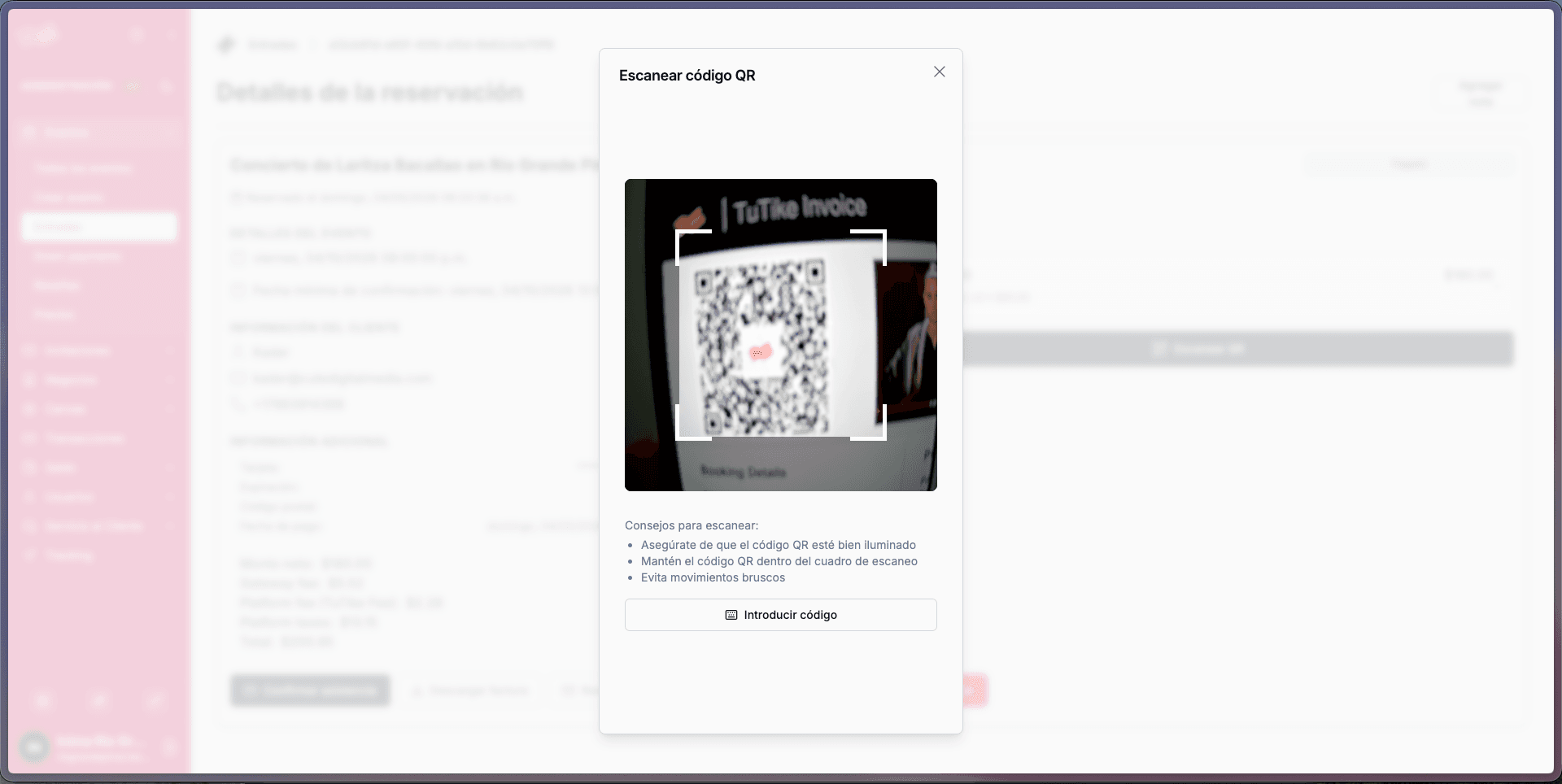
Manual option
If scanning fails or you do not have access to a camera, you can enter the entry code manually. Each entry and each slot has a unique code. When you enter the code in the corresponding field, the system will automatically confirm that entry.
Scanning process
When you scan a QR code:
- The system automatically takes you to that entry's details
- It confirms the specific slot that was scanned
- From that same screen, you can click Scan QR again to scan the next slot
- Slots can be from the same entry or from different entries
- You will see each individual slot getting confirmed as you scan them
Confirm full attendance
In addition to scanning each slot individually, you have the option to confirm the full attendance of an entry:
- On the entry detail screen, click the Confirm attendance button
- This will confirm all people associated with that entry at once
- Attendance is also considered automatically confirmed when all individual slots of an entry have been scanned and confirmed
Summary of confirmation options
You have two ways to confirm attendance:
- Individual confirmation: Scan each QR code for each slot one by one
- Full confirmation: Use the "Confirm attendance" button in the entry details to confirm all people at once