Event details
Complete management of event information and reservations
Event listing
On the event listing page you will see all your events with filters and controls to manage them.
Available filters
You can filter events by:
- Search: event name
- Date: event date
- Location: event venue
- Event type: Canvas (interactive map) or Tickets by quantity
- Date range: specific period
- Event status: All, Coming soon, Sold out, Archived, On sale, Past, Events with pending balance
Listing columns
- Name: event title
- Type: sales model (Canvas or Tickets)
- Privacy: visibility setting
- Basic analytics: quick event metrics
- Number of reservations: total bookings made
- Number of people: total attendees
- Withdrawn balance: indicates whether the event balance has been withdrawn
- Location: venue where the event will take place
- Status: Active, In maintenance, Deactivated
Available controls
From the listing you can:
- View details: access the full event page
- Edit: modify the event settings
- Clone: create a copy of the event
- Reserve: create an administrative reservation for the event
- Send reports: send reports to event users
- Activate: set the event to active status
- Mark as coming soon: change status to "Coming soon"
- Mark as sold out: indicate that no more availability exists
An event can only be deleted if it has no reservations. Once the event has reservations, it cannot be deleted. Instead, you can deactivate and archive it so it no longer appears in the views.
Event details page
When accessing an event's details, you will find a complete view with multiple tabs to manage all aspects of the event.
General controls
From the details page you can:
- Deactivate: put the event in inactive status
- Reserve: create an administrative reservation
- Send reports: send reports to users
- Clone: duplicate the event
- Archive: archive the event
- Mark as coming soon: change status to "Coming soon"
- Mark as sold out: indicate that no availability exists
Tab: Information
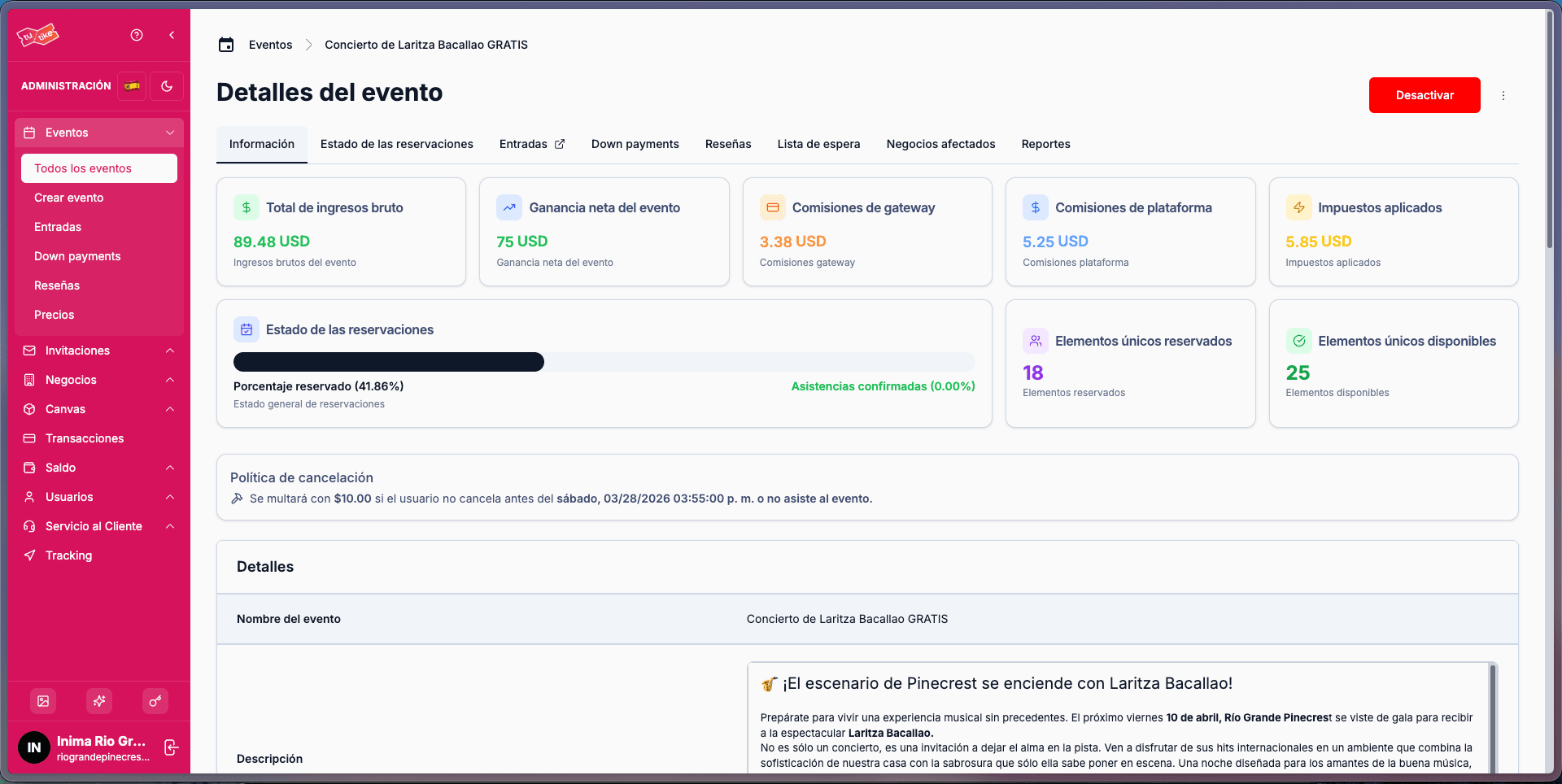
This tab shows cards with the general and financial information of the event:
- Total gross revenue: sum of all payments
- Net profit: revenue after deducting commissions
- Gateway commissions: payment processor fees
- Platform commissions: TuTike fees
- Applied taxes: total taxes charged
- Unique reserved elements: number of occupied slots
- Unique available elements: number of free slots
- Progress bar: visualization of the event's total capacity considering current reservations
Also includes all event details:
- Cancellation policy
- Event name
- Description
- Tagline
- Tags used
- Start and end dates
- Event images
Tab: Reservation status
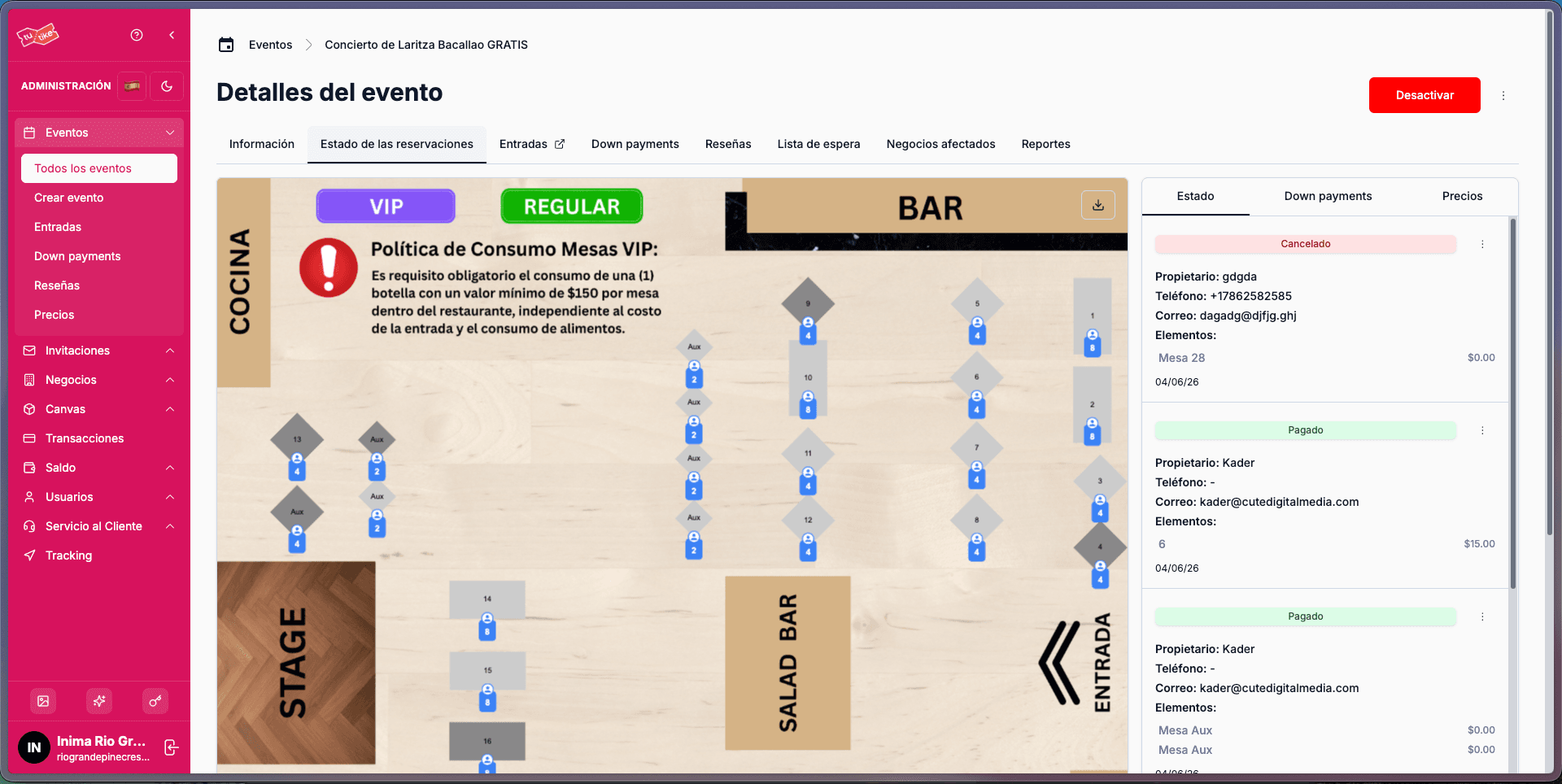
This tab lets you visualize the current status of the event's reservations.
If the event is Canvas type, you will see:
- Event map: graphical visualization of the floor plan with reserved and available elements
On the opposite side, you will find a table with three sub-tabs:
Status
Shows all reservations with their current status:
- Entry status (paid, payment pending, etc.)
- Owner (customer name)
- Phone
- Reserved elements (tables, seats, etc.)
Payments
If the event has partial payments configured, this sub-tab shows payment installment information.
Prices
Shows the pricing configuration applied to the event.
Tab: Entries
This tab redirects to the full entries listing, but filtered exclusively to show only the reservations of this specific event.
Tab: Down payments
If the event has partial payments (down payments) configured, this tab shows:
- All entries paid with a down payment
- Amount currently paid
- Total amount to pay
- Down payment status (completed, expired, pending, etc.)
Tab: Reviews
Here you will find all the reviews users have left about the event. For each review you can:
- Validate: confirm the review is legitimate
- Reply: respond to the customer
- Hide: hide the review from the public
- Approve: publish the review
Tab: Waitlist
Shows all users who have joined the event waitlist. From here you can:
- View the complete list of waiting users
- Manually add new users to the waitlist
- Notify waitlist users when availability opens up
Tab: Affected businesses
If the event takes place at a restaurant that has the dining reservation integration enabled, this tab lets you:
- Create schedule exception configurations for the restaurant
- Confirm that people cannot have dining reservations at the same date and time as the event
This prevents conflicts between event reservations and regular restaurant reservations.
Tab: Reports
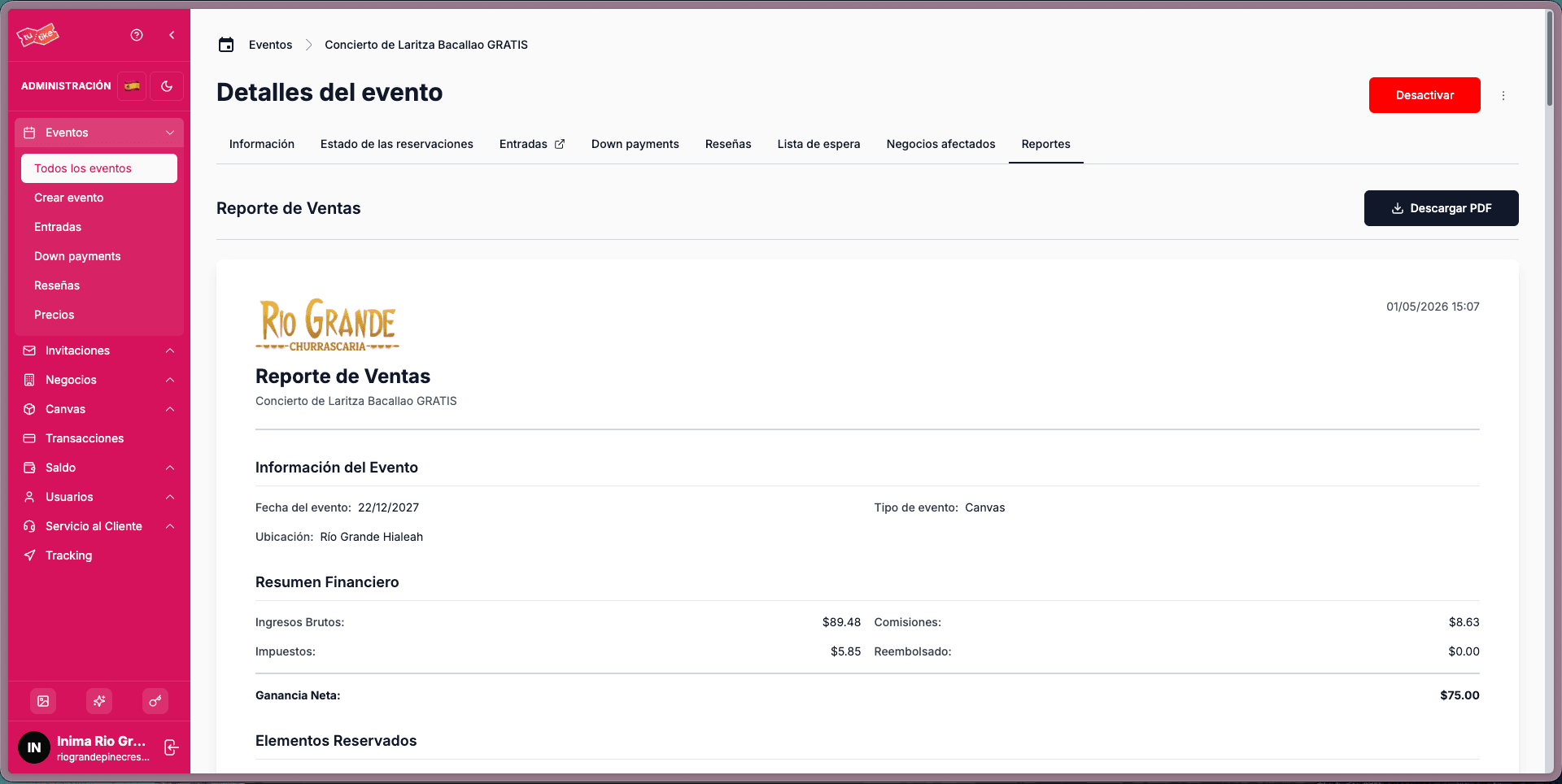
This tab contains the event's financial report, which you can download in PDF format.
The report includes:
- Complete event information
- All reservations made
- Applied commissions
- Detailed table with a summary of each reservation
- Details of each booking in a pack
- Reserved tables
- Administrative notes