Edit entries
Advanced reservation management
What is editing entries?
From this section you can make advanced modifications to existing reservations, such as adding or removing people, changing tables, adding extra charges, and updating customer information.
Editing a reservation
To edit a reservation, access the entry detail page and click the Edit button. This takes you to a dedicated editing page where you can perform the following actions:
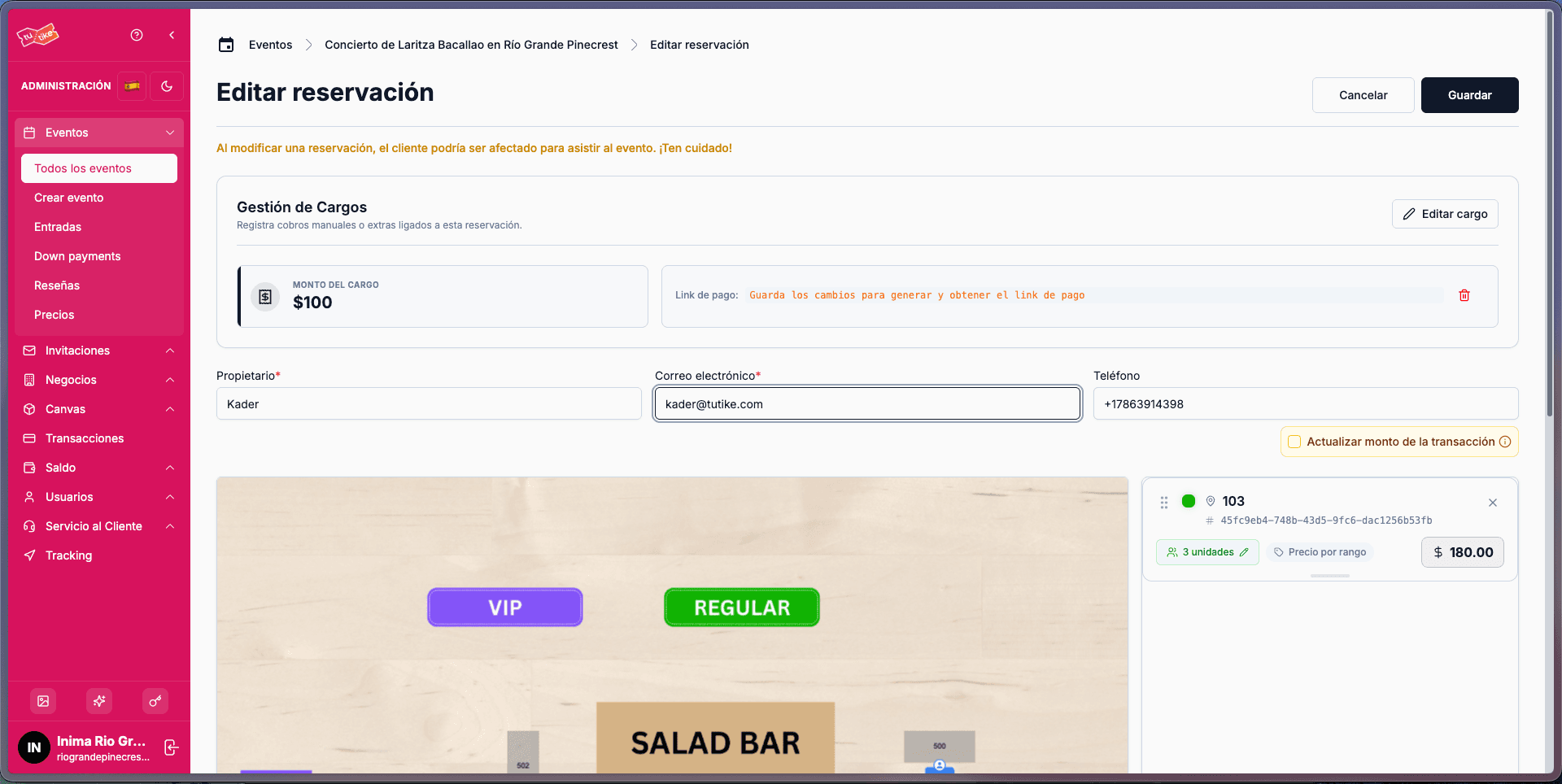
Extra charge management
This section lets you add additional charges to an existing reservation. This is useful, for example, when a customer who reserved for 4 people wants to add a fifth person.
There are two types of extra charges:
- Extra charge with payment link: A payment link is generated for the specified amount (e.g. $50) and sent to the customer to complete payment through the system.
- Extra charge without payment link: A transaction is generated as if payment had been made, but it serves as a record of a manual payment made outside the system (bank transfer, cash, etc.).
Extra charges with payment link: pending or not
Extra charges that generate a payment link can be configured as:
-
Payment pending: The reservation modification is only applied when the customer completes payment via the link. During this period, the elements involved (tables, seats, etc.) are blocked to avoid conflicts with other reservations. If the customer does not pay within the defined time, the edit is automatically cancelled and the reservation remains as it was.
Example: A customer wants to add a new table to their reservation. The payment link is generated, marked as pending, and sent to the customer. When they pay, the system edits the reservation, assigns the new table, and sends the updated ticket. If they don't pay within the established time, the edit is cancelled.
-
Payment not pending: The edit is applied immediately (useful for trusted customers) and the customer can pay later through the generated link.
This temporary blocking system is important because, while the payment link is active and the customer has not paid, it prevents another person from reserving the elements being modified (such as when switching from one table to a more expensive one).
Basic reservation details
You can edit the following basic customer information:
- Owner: name of the reservation holder
- Email: contact email
- Phone number: contact phone
Update transaction amount
This field lets you overwrite the actual amount of a transaction in the database. It is disabled by default and is used in specific cases where the customer paid the difference manually and you do not want to reflect it as an extra charge.
For example, if a reservation was originally paid at $180, but the customer paid the difference outside the system, you can use this field to update the recorded amount without creating an additional extra charge.
Canvas selection
If the event uses an interactive map (canvas), you can:
- Add or remove tables: select the tables you want to add to the reservation or remove existing ones
- Define number of people: set how many people will be assigned to each table
- Define price per table: you can use the actual price assigned to the table or override it with a specific amount
This tool lets you visualize and manage changes on the event map before confirming the edit.
Add notes
Internal administrative notes allow you to record additional information about the reservation that is only visible to the team. These notes appear in:
- Entry details
- Sales reports
This feature is useful for documenting the context of modifications made. For example:
- Explaining why an extra charge was added
- Detailing the reason for a partial refund
- Recording changes in the number of attendees
Example: "The customer originally booked for 5 people, but one couldn't attend due to illness. A refund was issued for the amount corresponding to 1 entry."
Cancel a reservation
Cancellation is an action independent of refund. It is used when, for example, the event policy states that no refunds are made if the cancellation is requested less than 72 hours in advance.
Cancellation options
- Send email: checked by default, notifies the customer about their entry cancellation.
- Notes: field to indicate the reason for the cancellation.
- Notify waitlist: unchecked by default. If the event was sold out and a cancellation occurs, checking this option automatically sends emails to customers on the waitlist informing them that a slot is available for booking.
Refund a reservation
When refunding an entry, you have the following options:
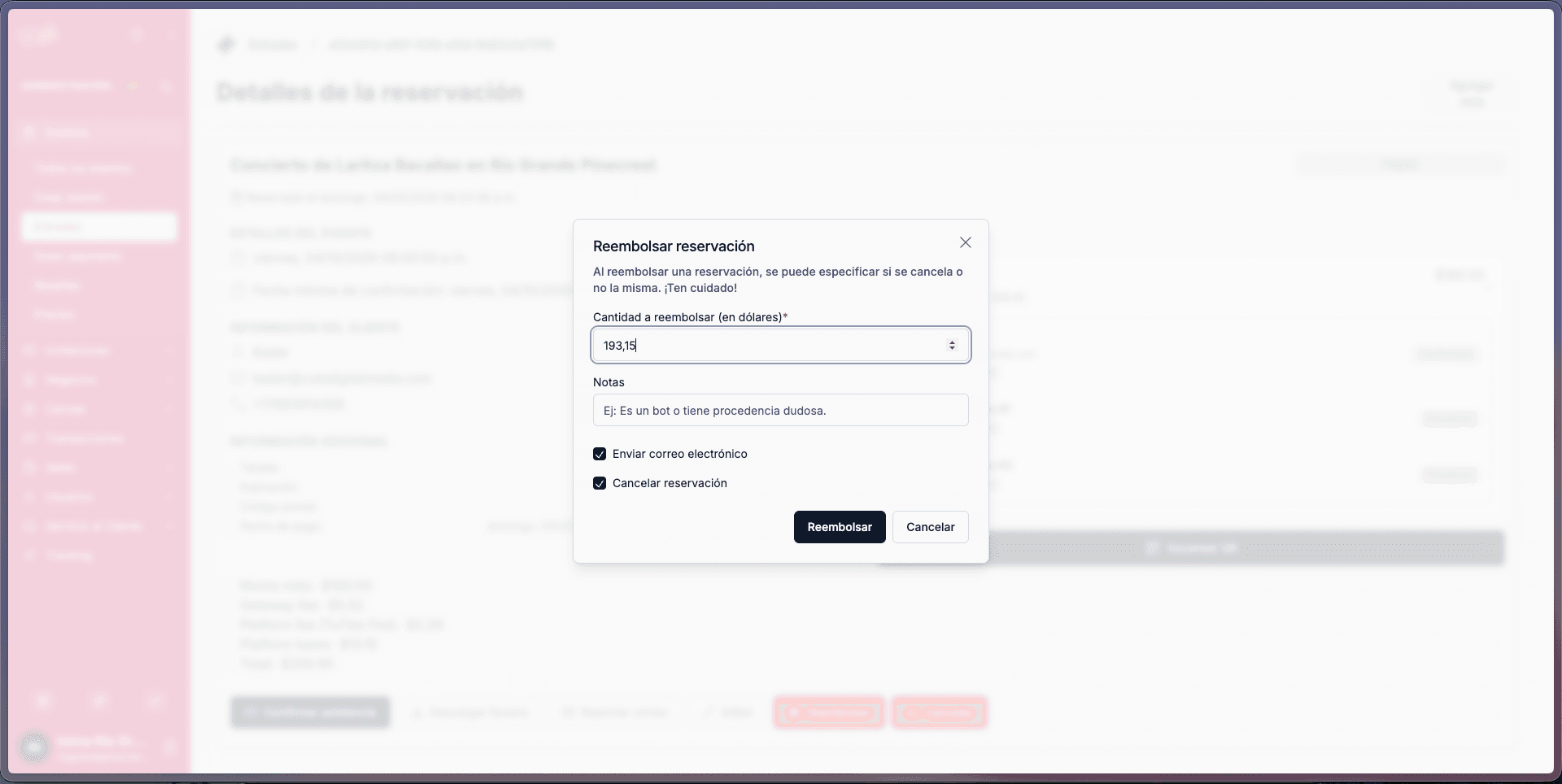
Amount to refund
By default, the system shows the maximum possible refund amount. This amount includes:
- Net entry amount
- Taxes
- Customer fees (API access fees and event fees)
Important: The system never refunds the gateway fee or platform fee. These fees are automatically deducted from the refund calculation.
You can modify the amount if you want to make a partial refund.
Additional options
- Notes: field to indicate the reason for the refund.
- Send email: if checked, an email is sent to the customer informing them of the refund.
- Cancel reservation: if checked, in addition to refunding, the full reservation is cancelled.
Partial refund example: A customer reserved for 5 people but only 4 will ultimately attend. In this case, you refund the amount for 1 person but uncheck the "Cancel reservation" option so the reservation remains active for the remaining 4 people.
Availability time
The refund will be available in the customer's account within 5 to 7 business days.