Entries
Reservation management and event access control
What are entries?
Entries are the confirmed reservations of your event attendees. From this section you can view the complete listing of all reservations for your events, see the details of each one, download PDFs, resend confirmation emails, and access the detail page to manage additional actions such as editing, refunding, or canceling reservations.
Contents of a reservation
Each reservation contains:
- Customer information (name, email, phone)
- Event and element details (seats, sections, or general admission)
- Main charge and additional charges if applicable
- Individual entries with a unique QR per ticket
- Down payment reference if applicable (installment payment)
- Referral link used (if the customer arrived via a promoter)
- Internal notes
- Beneficiary information if the reservation is a gift
Reservation statuses
| Status | Description |
|---|---|
| Paid | The customer completed payment. |
| Payment pending | Reservation created but payment not yet completed. A payment link is generated for the customer to pay later. |
| Confirmed | Attendee confirmed in person (check-in completed). |
| No show | The attendee did not show up to the event. |
| Cancelled | Reservation cancelled. |
| Processed | Payment is being processed. |
| Refunded | The reservation has been refunded. |
Slot statuses (per person within a reservation)
When a reservation includes multiple people, each one has their own slot with an independent status:
| Status | Description |
|---|---|
| Pending | Pending confirmation. |
| Confirmed | Slot confirmed (individual check-in completed). |
| Cancelled | Slot cancelled. |
| No show | The person did not show up. |
Available filters
You can combine the following filters to find reservations quickly:
| Filter | Description |
|---|---|
| Search | Search by customer name, email, or phone. |
| Filter by event | Shows only reservations for a specific event. You can search by event title and see tags indicating whether the event is "on sale" or "has passed". |
| Filter by status | Shows reservations in a specific status (paid, payment pending, cancelled, refunded, etc.). |
| Filter by date | Date range to narrow down results. |
Reservation detail view
When opening a reservation from the listing, you will see a card with the following information:
- Customer data: name, email, phone.
- Reserved element: the seat, section, or ticket type they reserved.
- Links: QR code and invoice link.
Entries listing
On the main entries page you will see the listing of all your event reservations with the following options for each row:
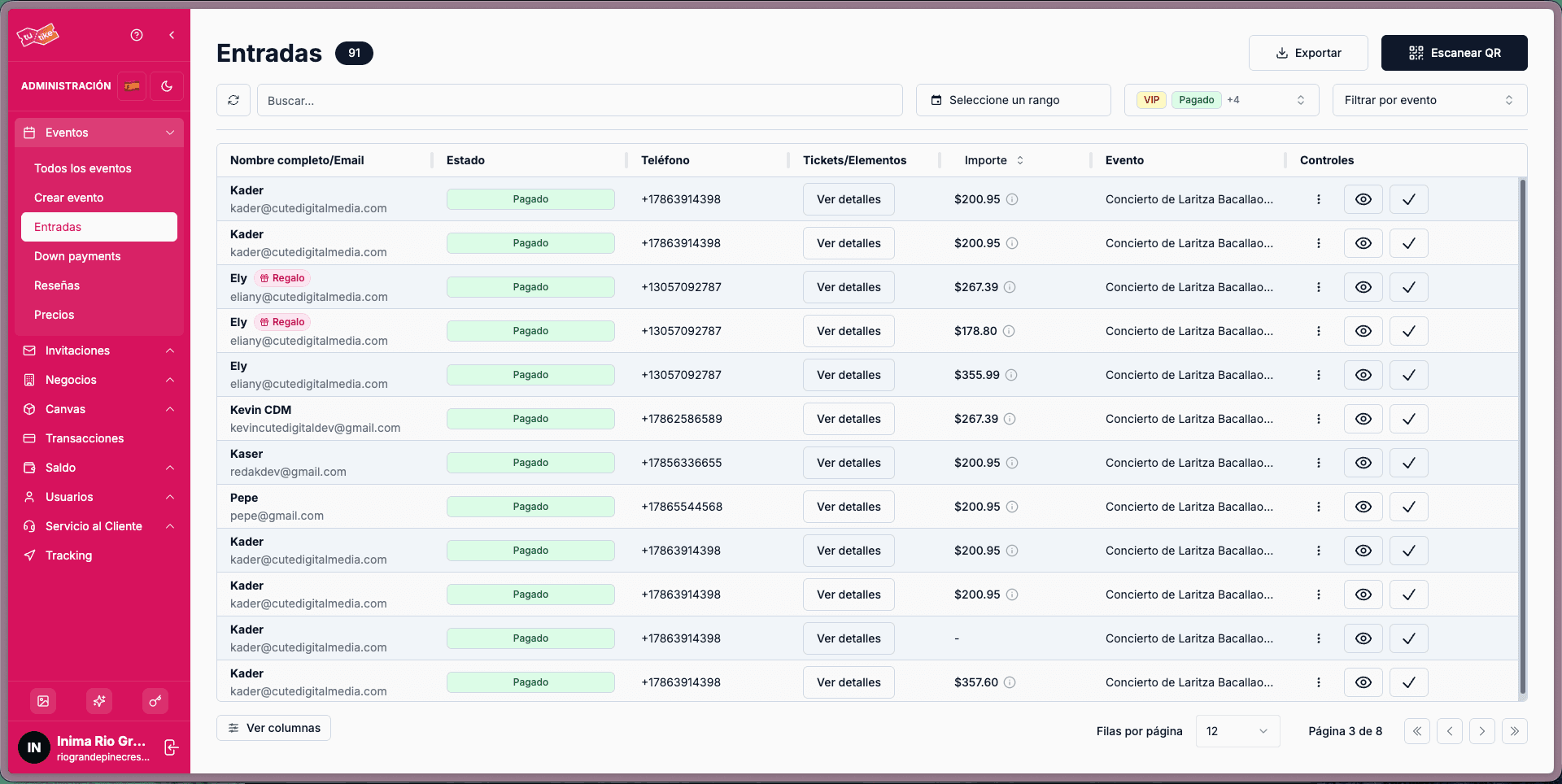
- View details: opens the card with the basic reservation information.
- Download PDF: downloads the entry PDF.
- Resend email: re-sends the confirmation email to the customer.
- Regenerate PDF: recreates the entry PDF.
You also have the Go to details button which takes you to the full reservation page, where you can perform additional actions.
Entry detail page
When accessing a full entry page, in addition to viewing all general information (customer data, reserved element, links to QR and invoice), you have access to the following actions:
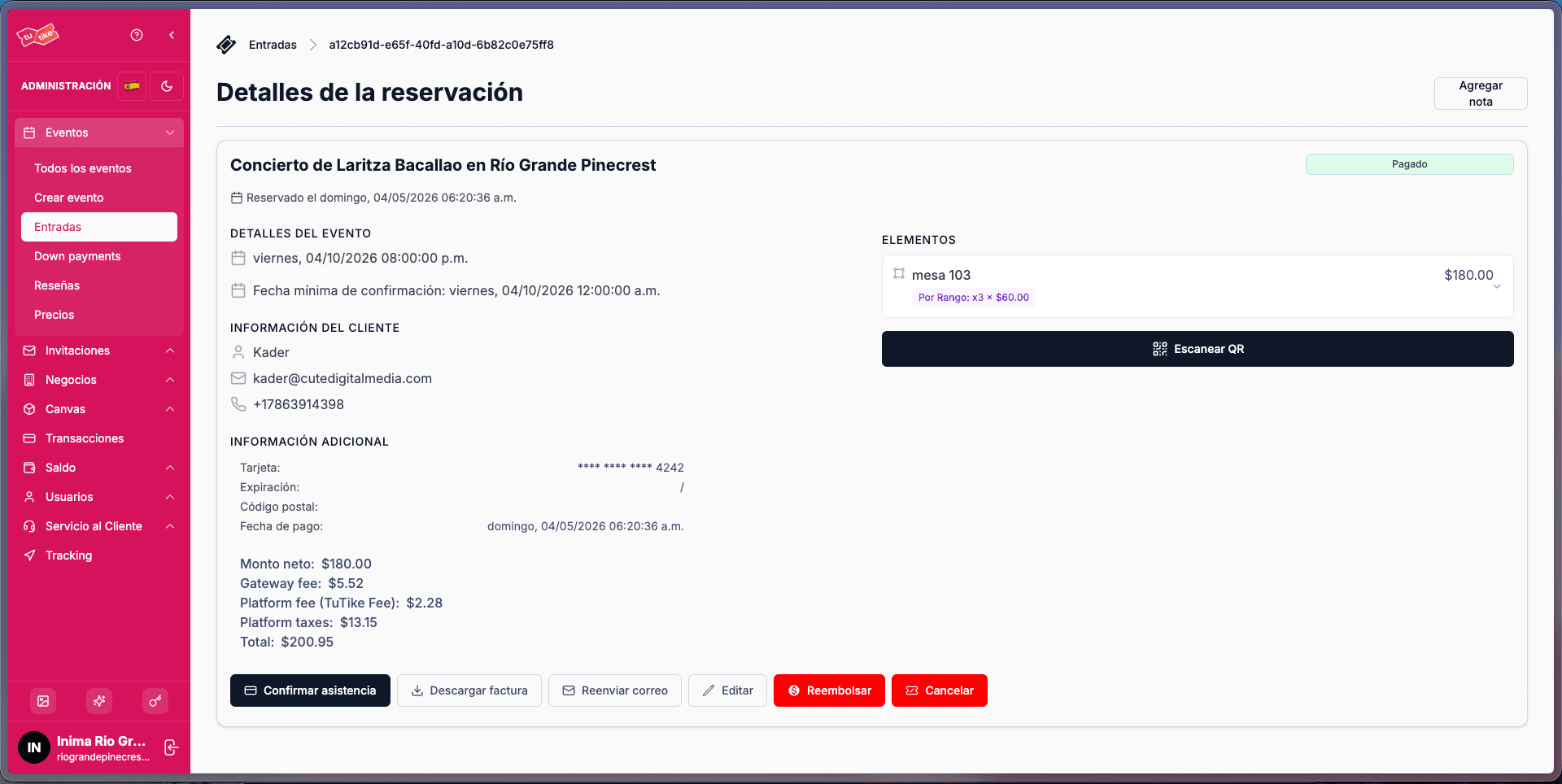
- Edit: modify the name, email, phone, and notes of the reservation.
- Refund: issue a refund to the customer (only if the reservation has not been previously refunded).
- Cancel: cancel the reservation with a reason.
- Confirm attendance: record the attendee's entry.
- Scan QR: opens the scanner to validate the entry QR code.
- Add note: add internal comments about the reservation.
- Download invoice: get the reservation invoice.
- Resend email: re-send the confirmation email to the customer.
Export reservations
You can export the complete reservations listing. When clicking Export you have two options:
- Excel — downloads the file directly
- Google Sheets — exports the data to a spreadsheet in your Google account
The export includes all reservation data and additional charges in separate columns.